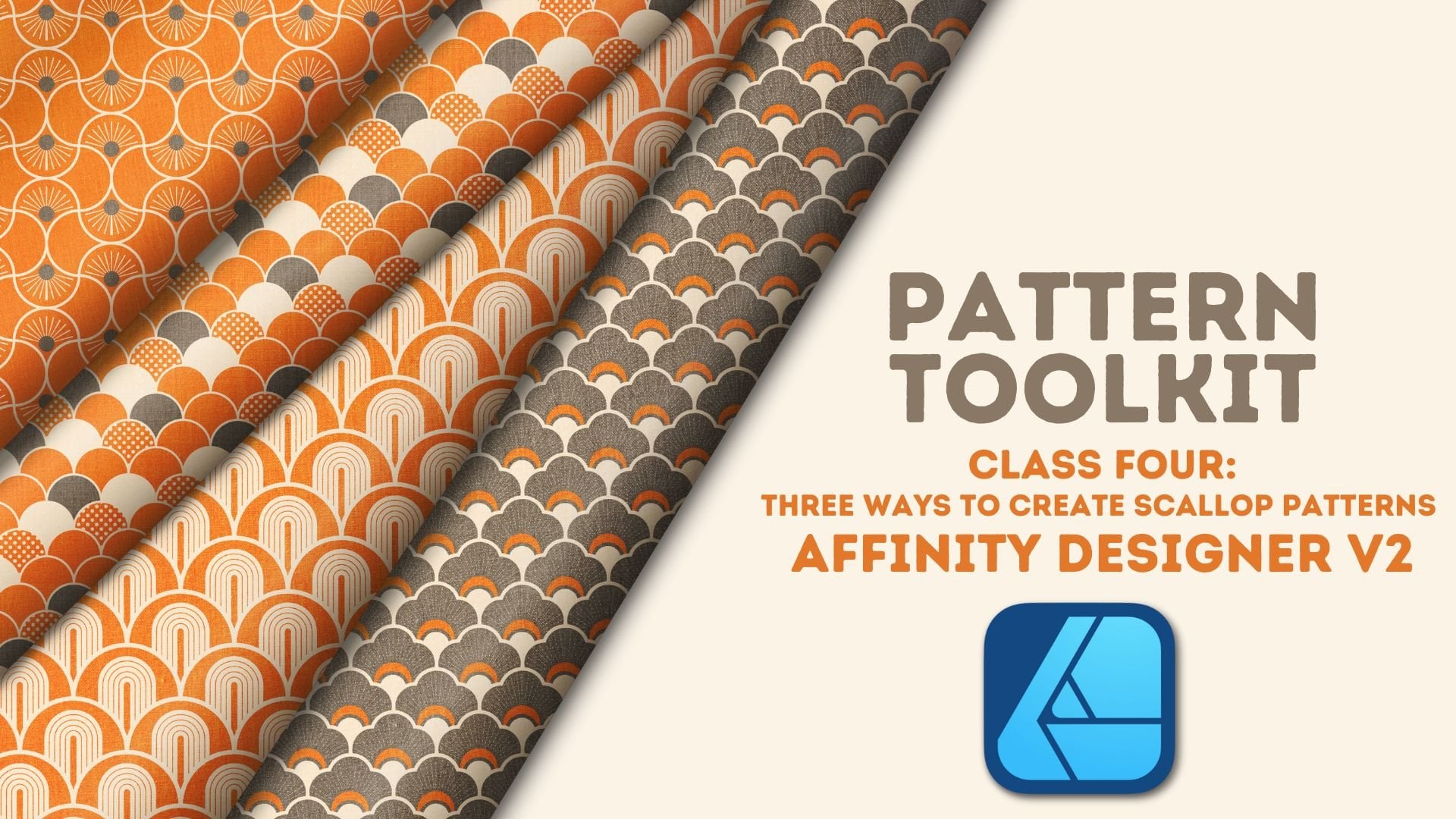
Creating scallop surface pattern designs in Affinity Designer is a fun way to add a touch of elegance and whimsy to your portfolio. By mastering the use of simple curves and repetition, you can create beautifully balanced patterns that are perfect for everything from textiles to wallpapers.
The best part? Creating scallops is not as difficult as you may think, in fact, in this class, I'm going to show you three ways to create scallop patterns, in Designer, that aren't difficult, but are super fun!
Hi everyone! I'm Tracey Capone, a designer and artist from the Chicago area. Welcome to Three Ways to Create Scallop Patterns in Affinity Designer!
Welcome to the next class in my series of surface pattern design classes, called "Pattern Toolbox!" In this series of classes, we'll focus on a specific pattern, or theme of patterns, in a variety of applications: the Affinity suite, Adobe, and Procreate. With each lesson, you'll walk away from class with a new design for your portfolio, as well as experience in tools that can expand your creativity in surface pattern design and beyond.
Affinity Designer is packed with tons of amazing tools, but, in this class, we only need to focus on a small handful to make beautiful scallop shapes for our surface pattern designs. Throughout the class, we'll looking at:
- How to break up a single ellipse and put it back together as a scallop motif: I'll show you how you can break the ellipse in to a few single strokes and, with a few simple tweaks, and the Shape Builder tool, put it back together as a scallop. I'll also show you how choosing the size of the original ellipse can impact your final shape and it's ease of tiling across the canvas.
- We'll look at how to use the Vector Flood Fill tool and multiple ellipses to create a scallop: We'll harness the power of the Vector Flood fill tool to quickly change the color of specific motifs in our pattern, as well as add transparent bitmap patterns on top of those motifs. I'll also show you how to use the Style Picker to add your transparent pattern to multiple motifs while maintaining a seamless design.
- How to turn a single cloud shape in to a unique scallop motif with some help from snapping and the Shape Builder tool: Because of it's unique shape, using a cloud to create a scallop can be a bit of a challenge. I'll show you what to look for in order to ensure you have a perfectly tillable motif each and every time.
- How to set up your canvas, and your initial ogee shape, for efficiency: When you think ahead to what you want your final outcome to be, and set up your initial shape with that in mind, you can quickly and easily, create tons of ogee patterns, at any scale, for your print on demand needs and portfolio.
- How to test your patterns using the Gradient tool: I'll show you how to save your artboards as assets and use the bitmap feature in the gradient tool to test your designs quickly, right inside Designer.
- As a bonus, I'll show you how to take a single scallop motif and turn it in to an ogee: With a quick duplicate and rotate, as well as some help from a horizontal and vertical flip, you can create two motifs from one!
- Affinity Designer V2 (desktop or iPad)
- Please note, there are tools used in this class that are only available in V2 of Designer
I'll be using the desktop version of Affinity Designer V2. Most tools used in the class are available on both the iPad and desktop versions, with the exception of the Move Data Entry feature. For those on the iPad, you can still follow along and use the traditional power duplicate method.
Please note, while you can create the same patterns in Affinity Photo, there are some tools used in this class, such as the Shape Builder, that are only available in Affinity Designer.
While this class is beginner friendly, it does assume some familiarity with Affinity Designer V2 and the overall surface pattern design process. Please note, we will not be reviewing the interface in this class so it is important that you know where all tools are located, and the basics of how Designer works, in order to have a successful time with this class.
Hi there! I'm Tracey. I'm an illustrator, designer, and photographer located in the Chicagoland area. You can find more information about me, and my work in my full profile. (find the link above) I've been a full time artist for over a decade, after leaving the corporate world behind in 2011. In addition to teaching, I am a full time creator who sells my work on my own site, as well as print on demand sites like Spoonflower, Etsy and more.
I've been using Affinity products for the last several years and love to learn as much as I can about the tools so I can not only use them the way they were intended to work but make them work for me; and I love sharing that knowledge with my students! I've had the privilege of being spotlighted by Serif, the company who created the app, twice as a go to teacher for their apps. You can find links to the spotlight articles, as well as a Creative Session I've created for their YouTube channel, on my profile page.
If you have any questions about the class, or would like feedback on your project, please feel free to let me know in the Discussion section of class, or by emailing me at hello@traceycapone.com.
I look forward to seeing you in class!
Music Credit: "Passionate Choices," by Mansij on artlist.io